Online Audio Converter
This webpage offers a free online audio converter that supports over 300 formats, allowing users to convert and extract audio from video files securely.
Online Audio Converter Introduction
Online Audio Converter
Our platform offers a free online app designed to convert audio files effortlessly. With support for over 300 different file formats, including video formats, our tool allows you to convert files into popular audio formats such as mp3, wav, m4a, flac, ogg, and more. This service is not only quick and efficient but also requires no installation, making it easily accessible for anyone in need of audio conversion.
Online Audio Converter Features
Audio Converter - Effortless File Conversion
A free online app that converts audio files with ease. The app supports all formats and processes your files quickly, eliminating the need for installation.
Convert Any Format - Versatile Audio Handling
Our converter supports over 300 different file formats, allowing users to convert files into various audio types such as mp3, wav, m4a, flac, ogg, amr, mp2, and m4r. This versatility caters to diverse user needs, ensuring compatibility regardless of the source format.
Extract Audio from Video - Simplifying Media Management
Easily extract audio tracks from video files, making it an ideal tool for users wanting to save specific songs from movies or music videos. This feature streamlines the process of obtaining audio content without requiring additional software.
Advanced Settings - Customized Quality Control
Configure aspects like quality, bitrate, frequency, and more to tailor your audio conversions. By offering these options, we empower users to optimize their output based on personal preferences and requirements.
User-Centric Design - Intuitive Interface
A design focused on user experience ensures that even those with minimal technical skills can navigate the tool effortlessly. This accessibility is key for individuals frequently converting files on the go, whether for professional use or personal projects.
Frequently Asked Questions About Online Audio Converter
Frequently Asked Questions
What audio formats can I convert using your online audio converter?
Our online audio converter supports over 300 different file formats, including popular audio formats like mp3, wav, m4a, flac, ogg, and more. You can also convert video formats to audio with ease.
Can I extract audio from a video file?
Yes, you can easily extract audio tracks from video files using our app. This feature is particularly useful for saving a specific song or soundtrack from a movie or music video, allowing you to keep your favorite audio content.
What audio quality options are available for conversion?
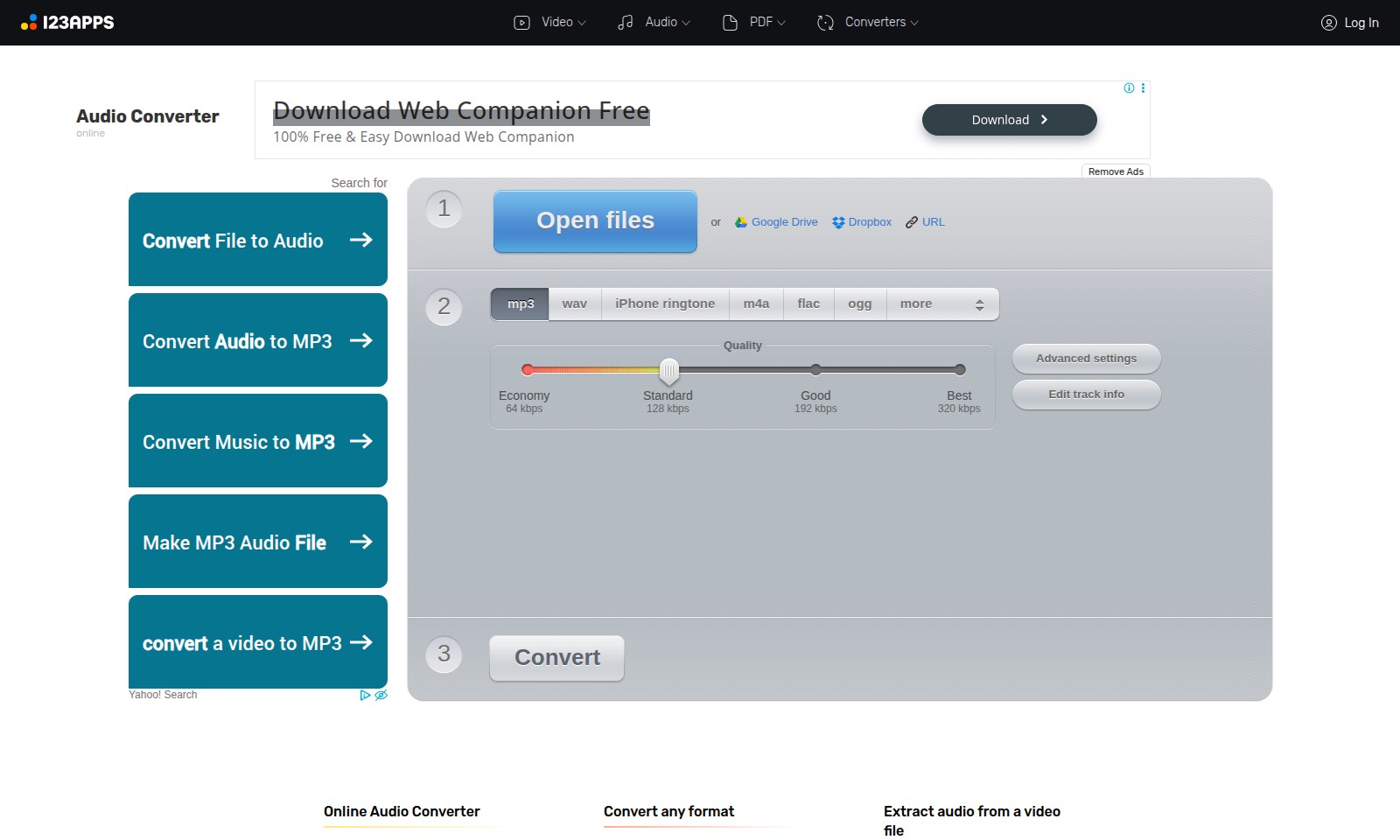
We offer several quality settings for your audio conversions: Economy (64 kbps), Standard (128 kbps), Good (192 kbps), and Best (320 kbps). You can select the desired quality based on your needs, ensuring that you get the right balance between file size and audio quality.
Do I need to install any software to use your converter?
No installation is required! Our online audio converter is a free app that you can access directly from your browser. It processes your files quickly and does not involve any unwanted ads, making it user-friendly and efficient.
How do I upload files for conversion?
You can upload files from your computer, Google Drive, Dropbox, or even by using a direct URL. This flexibility makes it easy for you to convert audio files without any hassle.
What should I do if I encounter an issue during the conversion process?
If you experience any issues, please restart your browser and try the conversion again. If the problem persists, feel free to contact our support team for assistance. We are here to help you with any questions or technical difficulties.
How to Use Online Audio Converter
How to Register and Use the Online Audio Converter
Step 1: Register an Account
Create an account by clicking on the 'Log In' button on the homepage. Fill out the necessary information, including your email address and a password, then confirm your registration through the email sent to you.
Step 2: Log In
After your account has been created, return to the homepage and click 'Log In'. Enter your credentials to access your account and to save your conversion settings and history.
Step 3: Choose Your Files
Click on the 'Open files' button to select audio files from your computer or choose files from Google Drive, Dropbox, or by entering a URL. Ensure your files are in a supported format such as mp3, wav, or flac.
Step 4: Select the Output Format
After uploading your files, select the desired output format from the dropdown menu. The app supports various formats like mp3, m4a, and ogg, which are necessary based on your usage preference.
Step 5: Set the Quality
Choose the quality of the output file. Options include Economy (64 kbps), Standard (128 kbps), Good (192 kbps), and Best (320 kbps). Pick the quality that best suits your needs.
Step 6: Advanced Settings (Optional)
If needed, you can access advanced settings to edit track info, adjust bitrate, frequency, and the number of channels. This step allows you to customize the output to better match your requirements.
Step 7: Convert Your Files
Once you’re ready, click the 'Convert' button. Wait for the conversion process to complete. A notification will inform you when the process is finished, and you can download or save your file.
Step 8: Download or Save Your File
After the conversion is complete, you can download the file directly to your device, or choose to save it to your Google Drive or Dropbox for later access.
Step 9: Convert Another File
If you have more files to convert, you can start the process again by clicking on 'Convert another file' which takes you back to the file selection page.
Reviews
Pros
- Easy to use
- Fast processing
- Great results
- Affordable pricing
Cons
- Limited free version
- Requires internet connection
Comments
No comments yet. Be the first to share your thoughts!
Online Audio Converter - Alternative Platforms
For some alternatives to Online Audio Converter that you may need, we provide you with sites divided by features.
SAM Audio leverages AI to provide seamless audio separation, making it ideal for music production, podcasting, and sound design.
Voicemaker transforms text into human-like speech, enabling creators to produce voiceovers easily for diverse applications.
Adobe Podcast offers AI-driven tools for recording, editing, and enhancing audio seamlessly online.
TurboScribe offers unlimited audio and video transcription with advanced features like speaker recognition, translations, and high accuracy.