Image to Video AI
Image to Video AI allows quick, high-quality video creation from images, integrating with tools like Google Chrome and Figma for seamless workflows.
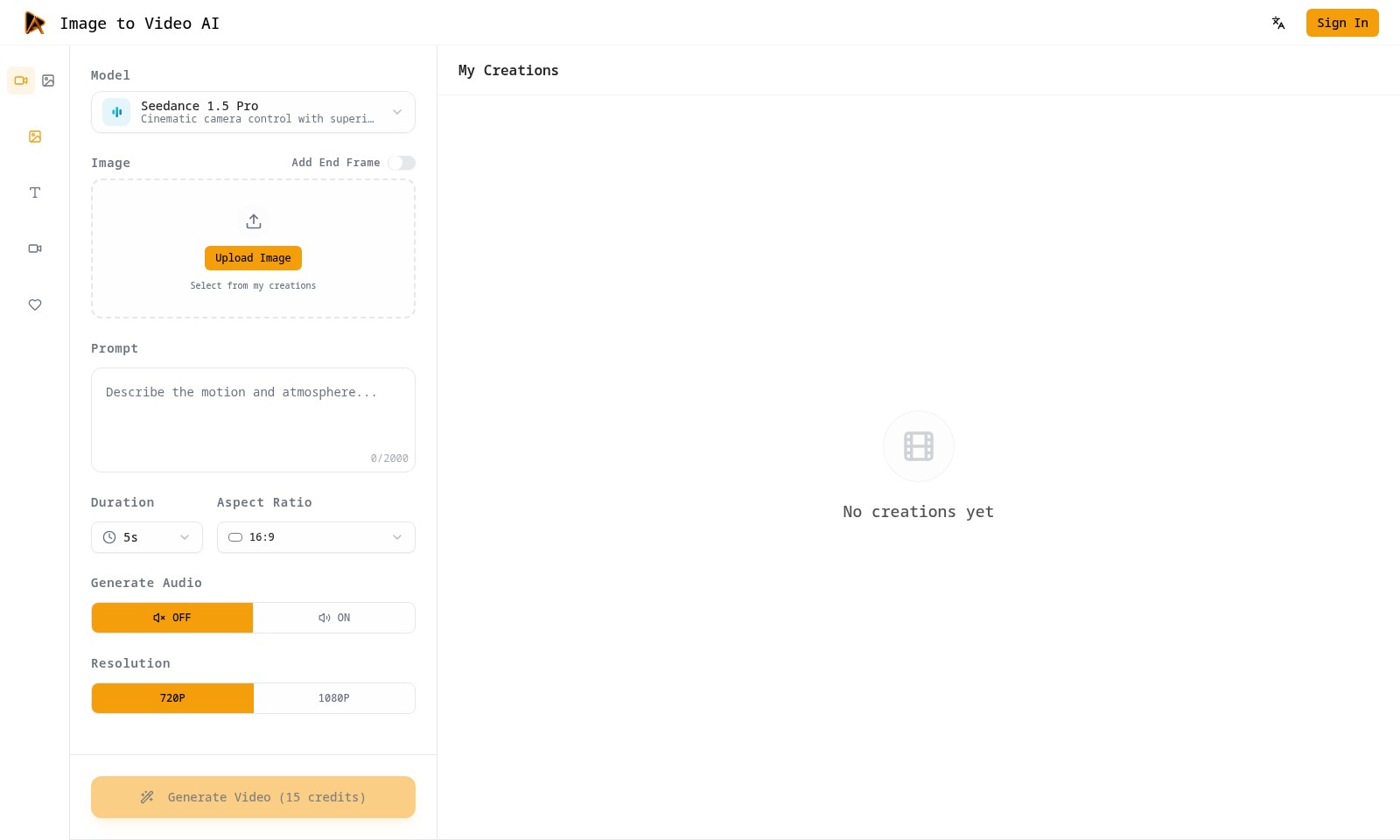
Image to Video AI Introduction
Turn Your Images into Engaging Videos
Transform your still images into captivating video clips with Image to Video AI. Our platform offers a unique combination of advanced features, including cinematic camera control and dynamic motion, enabling you to create story-driven content effortlessly.
Image to Video AI Features
Image to Video AI - Transform Static Images into Dynamic Visual Stories
Image to Video AI empowers users to create captivating videos from still images, enhancing engagement and storytelling. This technology uses advanced algorithms to simulate realistic motion and physics, allowing for fluid transitions and lifelike animations that captivate audiences.
Seamless Model Comparison - Effortless Quality Assessment
Users can analyze and compare motion quality, speed, and artistic style across various AI models in real-time. This feature eliminates the need for repetitive uploads, saving time and keeping your workflow efficient and streamlined.
Integrated Voiceover and Cinematic Control - Professional Results Made Easy
Our platform supports integrated voiceover capabilities alongside robust camera control, enabling users to craft professional-grade content effortlessly. With keyframe control and cinematic language, every video feels engaging and polished, suitable for both product demos and creative projects.
Flexible Output Settings - Tailored for Every Use Case
Users can customize video duration, aspect ratio, and resolution to meet specific project needs with precision. These adaptive settings ensure that each output is fully optimized for the intended platform or audience, maximizing reach and impact.
Consistent Workflow Management - Streamlined Production Pipeline
By maintaining consistent prompts and settings, our tool allows users to achieve reliable and repeatable results. This feature is particularly beneficial in professional environments where consistency is key, allowing for easier benchmarking and quality control.
Frequently Asked Questions About Image to Video AI
FAQs for Image to Video AI
Q1: How does the Image to Video AI work?
A: The Image to Video AI takes your still images and transforms them into engaging video clips. By using advanced algorithms, it adds dynamic motion, realistic physics, and optionally, a voiceover to bring your images to life.
Q2: What are the aspect ratio options available?
A: You can choose the aspect ratio of your video clips. The platform currently supports a 16:9 aspect ratio, which is ideal for most presentations and online platforms.
Q3: Do I need to sign in to use this service?
A: Yes, you will need to sign in to access the Image to Video AI features. This allows you to save your creations and manage your projects effectively.
Q4: What video resolutions can I generate?
A: The platform provides two resolution options for your videos: 720P and 1080P. You can select the resolution that best suits your needs for quality and clarity.
Q5: How can I compare different AI models?
A: The platform allows you to compare motion quality, speed, and style of various AI models all within one studio. You can switch models without re-uploading your assets, making it easier to find the perfect fit for your project.
Q6: What is the cost for generating videos?
A: Generating a video requires 15 credits, which can be purchased on the platform. The credits can be used for creating videos and accessing various features of the Image to Video AI.
How to Use Image to Video AI
Sign Up
To start your journey, visit the homepage and locate the ‘Sign In’ button. Click it, then follow the prompts to register a new account using your email and a secure password.
Verify Your Account
After registration, check your email for a verification link. Click on this link to confirm your email address and activate your account.
Log In
Return to the website and click on ‘Sign In’. Enter your registered email and password, then click ‘Log In’ to access your profile.
Set Up Your Profile
Once logged in, navigate to your profile settings. Fill in any necessary information, such as your name and preferences to personalize your experience.
Explore Image to Video AI
Familiarize yourself with the main dashboard. Take a moment to overview the different features available, including the ability to upload images and generate videos.
Upload Image
Click on the ‘Upload Image’ button. Select a file from your device to import an image you wish to transform into a video.
Set Video Parameters
After uploading, choose your video settings. You can select the duration of the clip, aspect ratio, resolution, and whether or not to generate audio. Adjust settings according to your project needs.
Generate Video
Once all parameters are set, click on ‘Generate Video’. This will initiate the creation process using your uploaded image and selected settings. You will need 15 credits to generate a video.
Review Your Creation
After generation, revisit the ‘My Creations’ section. Here, you can view your generated video. Check the quality and ensure it meets your expectations.
Edit and Refine
If needed, you can go back to adjust parameters or try different images. Use your insights from the initial video to enhance your next creation.
Compare and Choose Models
Utilize the platform’s feature to compare different AI models in terms of motion quality, speed, and style. This will help you find the best fit for your specific project needs.
Add Voiceover
If your video requires narration, explore the voiceover options available. This can add depth to your video projects, making them more engaging and informative.
Save and Share
Once satisfied with your video, save it to your account. You can then share it directly with others or download it for personal use.
Reviews
Pros
- Easy to use
- Fast processing
- Great results
- Affordable pricing
Cons
- Limited free version
- Requires internet connection
Comments
No comments yet. Be the first to share your thoughts!
Image to Video AI - Alternative Platforms
For some alternatives to Image to Video AI that you may need, we provide you with sites divided by features.
Kovvid AI offers a user-friendly platform for generating AI images and videos, with the ability to compare multiple models in one place.
Discover the advanced AI tools at MakeShot.ai for creating stunning videos and images with a limited-time 50% discount.
Photo Animate allows users to easily animate photos to video using AI, creating realistic movements for portraits and cherished memories.
Discover high-quality free stock videos and AI tools for video and image generation, suitable for both personal and commercial use.