Lovelace
This webpage introduces a web-based IDE featuring AI tools, Git integration, and smart editing capabilities for an enhanced coding experience.
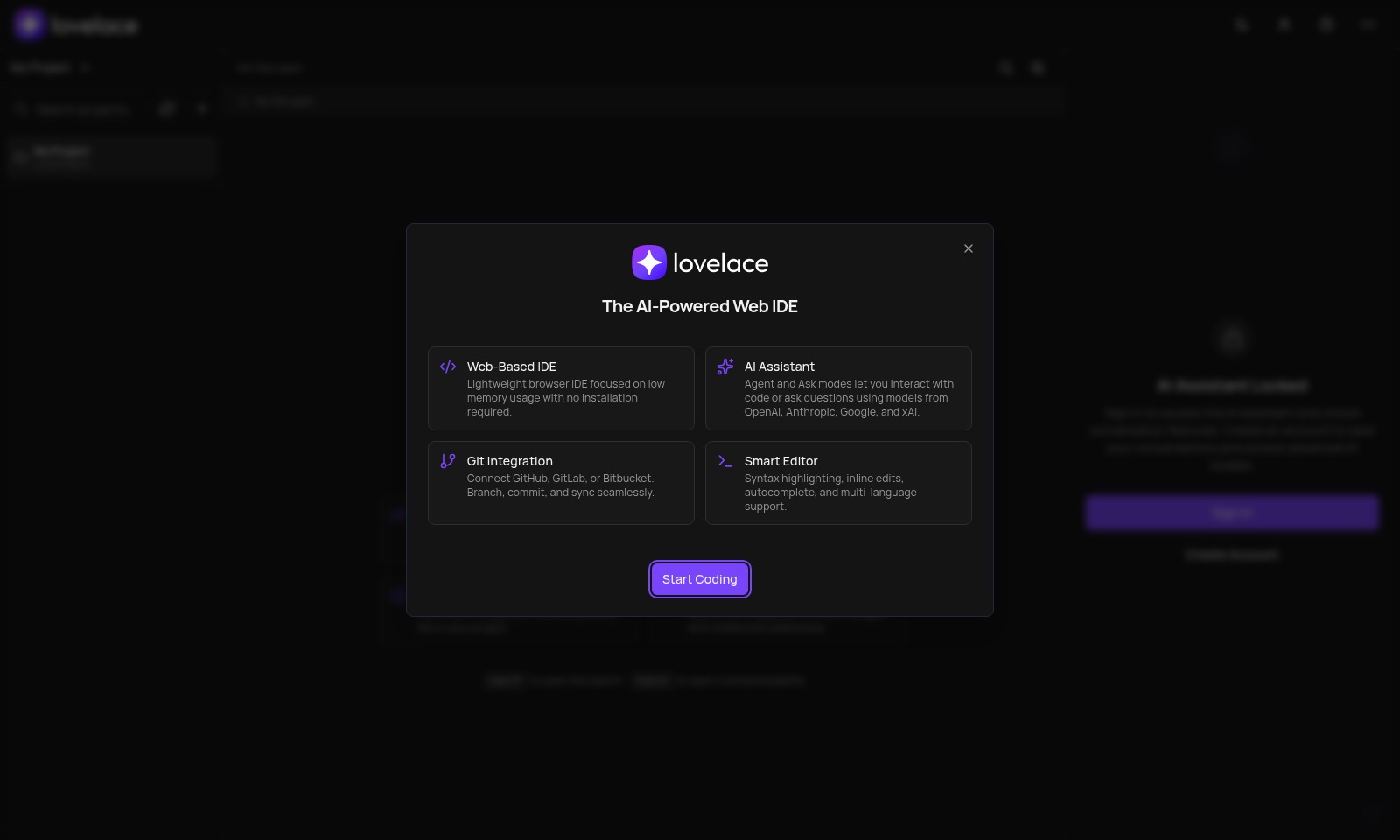
Lovelace Introduction
The AI-Powered Web IDE
My Project is a cutting-edge web-based integrated development environment (IDE) designed to streamline your coding experience. With intelligent features such as syntax highlighting, autocomplete, and inline AI edits, you can accelerate your workflow and enhance your productivity. You can create new files or easily access existing ones to get started immediately, making it ideal for both novice and experienced developers.
Lovelace Features
Smart Editing - Streamlined Workflow
Enhance your productivity with smart editing features such as syntax highlighting and autocomplete. This allows for quicker coding and fewer errors, as the system intelligently suggests code snippets and highlights potential errors to aid developers in real-time.
AI Assistant - Enhanced Coding Support
Leverage AI-driven support for improved coding efficiency. The AI assistant can modify code and answer complex queries using advanced AI models, enabling developers to solve problems faster and gain deeper insights while coding.
Quick Navigation - Efficiency at Your Fingertips
Navigate your project files in seconds using the Cmd+P shortcut. This feature allows users to swiftly locate and open any file, improving workflow efficiency and minimizing downtime when searching for specific project components.
Version Control - Seamless Collaboration
Utilize built-in Git integration to effortlessly track changes and collaborate on projects. This feature ensures that all modifications are accurately recorded, enabling developers to work together without losing historical data and ensuring code integrity.
Web-Based IDE - Accessibility Anytime, Anywhere
Access a lightweight browser IDE that requires no installation, making it ideal for low-resource environments. Perfect for developers on the go, this setup allows users to work from any device without worrying about local software installation and compatibility issues.
Frequently Asked Questions About Lovelace
What is My Project?
My Project is a web-based IDE (Integrated Development Environment) that allows users to create and manage their coding projects directly in the browser with no installation required. It's designed for ease of use and low memory consumption, making it accessible even on less powerful machines.
How do I get started with My Project?
To get started, simply click on 'Create a new file' or 'Open an existing one' on the homepage. This allows you to dive straight into coding, whether you're starting a fresh project or continuing with a previous one.
What features does Smart Editing include?
Smart Editing provides syntax highlighting, autocomplete, and inline AI edits to enhance your coding experience. These features help users code more efficiently by minimizing errors and speeding up the workflow, allowing for a more productive development environment.
How does the AI Assistant work?
The AI Assistant can answer your coding questions or assist in modifying your code based on your prompts. It's powered by advanced AI models that can provide recommendations and help streamline your development tasks, making coding easier and more efficient.
Can I use version control with My Project?
Yes, My Project has built-in Git integration. This feature allows you to track changes to your projects and collaborate seamlessly with others, ensuring that every edit is recorded and easily retrievable if needed.
How do I access the AI Assistant?
To access the AI Assistant, you'll need to sign in or create an account. This unlocks all the conversation features, allowing you to take full advantage of the AI's capabilities. It's a simple process that enhances your overall experience with the platform.
How to Use Lovelace
Create an Account
To get started, you need to create an account on our platform. Click on the 'Create Account' button on the homepage and fill in the necessary details. Ensure your password is strong to keep your account secure.
Sign In
Once you have created your account, go back to the homepage and click 'Sign In'. Enter your email and password to access your account and the web IDE's features.
Set Up Your Profile
After signing in, set up your profile by adding your name and a profile picture. This helps personalize your experience and makes collaboration more engaging.
Explore the Dashboard
Once your profile is set up, navigate to your dashboard. Here, you can see options for starting a new project, opening existing files, or exploring predefined templates.
Create a New Project
Click on 'New File' or 'New Folder' to start a new project. You can name your project whatever you like and choose the appropriate file type for your needs.
Use Smart Editing
Leverage smart editing features such as syntax highlighting and autocomplete to enhance your coding experience. This makes the coding process efficient and helps you catch errors quickly.
Utilize AI Assistant
Don’t hesitate to use the AI Assistant. Simply click on the 'AI Assistant' button to get help with your coding tasks. You can ask questions or let the AI agent modify your code for you.
Quick Navigation
For quicker access to your files, use Cmd+P to search and open any file in your project instantly. This saves you time and keeps your workflow smooth.
Version Control
Take advantage of the built-in Git integration to manage your project effectively. Track your changes, collaborate with others, and make use of version history to safeguard your work.
Start Your First Conversation
Once you feel comfortable, start your first conversation with the AI by clicking on 'New Conversation'. Engage with the AI to explore its advanced features.
Accessing Advanced Features
Remember, to fully utilize the AI Assistant's capabilities, ensure you are signed in. This will unlock additional conversation features and advanced AI models that can greatly improve your productivity.
Reviews
Pros
- Easy to use
- Fast processing
- Great results
- Affordable pricing
Cons
- Limited free version
- Requires internet connection
Comments
No comments yet. Be the first to share your thoughts!
Lovelace - Alternative Platforms
For some alternatives to Lovelace that you may need, we provide you with sites divided by features.

Comprehensive guide to the best hosting options for OpenClaw, featuring expert reviews and a side-by-side comparison of top providers.
ARC offers holistic AI solutions that prioritize user privacy and efficiency. Discover the Matrix and Reactor, designed to protect your data while enhancing your AI experience.
A visual design tool that simplifies frontend development through AI, allowing users to edit and integrate code seamlessly.
OceSha Ventures transforms ideas into AI-driven products, emphasizing collaboration and impact in technology.