Design In The Browser
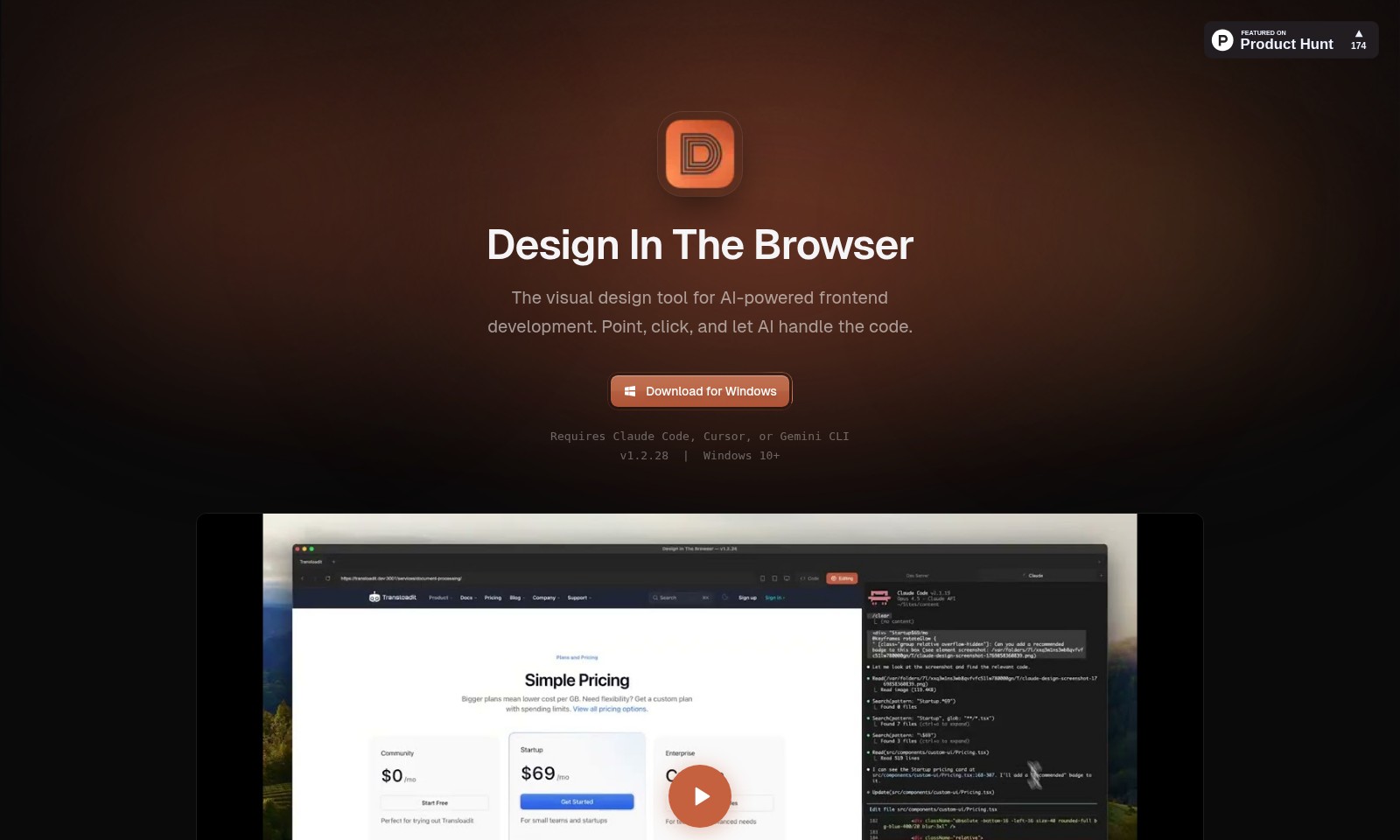
A visual design tool that simplifies frontend development through AI, allowing users to edit and integrate code seamlessly.
Design In The Browser Introduction
Design In The Browser
Design In The Browser is an innovative visual design tool that revolutionizes AI-powered frontend development. By employing an intuitive point-and-click interface, users can effortlessly communicate their design intentions and allow artificial intelligence to manage the intricate coding involved in bringing their visions to life. This tool not only streamlines the design process but also enhances productivity, making it an essential resource for developers and designers alike.
Design In The Browser Features
Point & Click Editing - Instant Accessibility
Easily interact with any UI element in your browser, sending it directly to Claude, Cursor, or Gemini CLI for immediate coding responsiveness. This feature eliminates the need for manual code navigation, allowing users to iteratively design their application seamlessly.
Code Editor Integration - Streamlined Workflow
Jump from any visual element to its source code within your preferred code editor. This integration enhances productivity by enabling fast edits and minimizes context switching, making it ideal for developers who thrive on efficiency.
Multi-Edit - Bulk Editing Capabilities
Select multiple UI components and add them to a single to-do list for simultaneous editing. This powerful feature significantly reduces the time spent on repetitive tasks, catering to developers handling extensive design projects who need to manage multiple elements at once.
Integrated Terminal - Holistic Development Environment
Experience the convenience of a browser and terminal side-by-side, complete with development server support. This integrated environment fosters a cohesive workflow, allowing users to test and deploy changes in real time, vital for modern agile development cycles.
Responsive Testing - Tailored Viewport Customization
Utilize a built-in viewport switcher that can be customized for various breakpoints. This feature ensures that designs are responsive and visually appealing across different devices, addressing the needs of developers who prioritize cross-platform compatibility.
Reference Images - Precision in Design
Add reference images directly into your prompts for pixel-perfect results. This feature empowers designers to maintain visual consistency and accuracy, which is crucial for those seeking high-quality user interface implementations.
Frequently Asked Questions About Design In The Browser
FAQ
Q1: What is 'Design In The Browser' and how can it help me?
'Design In The Browser' is a visual design tool that facilitates AI-powered frontend development. With its intuitive point-and-click interface, users can easily modify elements directly in their browser without needing extensive coding knowledge.
Q2: What do I need to download 'Design In The Browser'?
To get started with 'Design In The Browser', you need to download the software on a Windows system (Windows 10 or above). Make sure you have Claude Code, Cursor, or Gemini CLI installed to utilize all features effectively.
Q3: How does the point-and-click editing feature work?
The point-and-click editing feature allows you to select any element on your webpage in the browser and instantly send it to Claude, Cursor, or Gemini CLI for further coding. This streamlines the editing process and makes it user-friendly, even for non-coders.
Q4: Can I edit multiple elements at once?
Yes! 'Design In The Browser' offers a multi-edit feature that enables you to select and edit multiple elements simultaneously. You can add them to a to-do list for batch processing, saving you considerable time during development.
Q5: What is the integrated terminal feature?
The integrated terminal allows you to work with a browser and terminal side-by-side. This feature includes support for a development server, making it easier to test your changes in real-time without switching between windows.
Q6: How does responsive testing work in 'Design In The Browser'?
Responsive testing is made easy with the built-in viewport switcher. You can customize this tool for your specific breakpoints, allowing for a seamless design experience across different devices and screen sizes.
How to Use Design In The Browser
Step 1: Register for an Account
Visit the Design In The Browser website and click on the 'Sign Up' button. Fill in your details accurately and ensure a valid email address is provided for verification.
Step 2: Verify Your Email
Check your email inbox for a verification message and follow the instructions provided to confirm your account. This step is crucial as it activates your access to the platform's features.
Step 3: Download the Application
Navigate to the downloads section of the website. Select the version suitable for Windows and initiate the download. Be sure your system meets the requirements for installation.
Step 4: Install the Application
Once downloaded, locate the installation file and double-click to begin the installation process. Follow the on-screen instructions to complete the setup and ensure you allow necessary permissions.
Step 5: Set Up Your Profile
Launch the application and log in with your registered credentials. Begin by setting up your profile with relevant information to enhance your user experience on the platform.
Step 6: Explore the Dashboard
Familiarize yourself with the dashboard interface. Notice the different tools and options available, including point-and-click editing, multi-edit, and integrated terminal features.
Step 7: Start Your First Project
Create a new project from the dashboard and choose a template that aligns with your design goals. This step allows you to get hands-on experience flowing through the platform's functionalities.
Step 8: Use Point & Click Editing
Select any element on your webpage to utilize point-and-click editing. Modify properties directly with simple clicks, streamlining your design process.
Step 9: Access the Code Editor
When you want to dive deeper into coding, use the code editor integration feature. Jump directly from the UI element to its source code in your favorite editor, making code adjustments effortless.
Step 10: Test Responsiveness
Make use of the responsive testing tools available within the application. Check how your design renders across different devices using the built-in viewport switcher.
Step 11: Add Reference Images
If you require precision in your design, add reference images to your prompt. This helps achieve pixel-perfect results, ensuring your design matches expectations.
Step 12: Save Your Work
After completing your design, don't forget to save your project. Frequent saving ensures you don’t lose progress and allows you to return to the project later without hassle.
Step 13: Share with Others
Consider sharing your project with team members or stakeholders for feedback. Use the built-in sharing options within the platform for efficiency.
Step 14: Utilize the Integrated Terminal
Enhance your development experience by utilizing the integrated terminal. It allows you to manage your development server alongside your design work seamlessly.
Step 15: Explore Advanced Features
Dive deeper into the platform by exploring more advanced features such as multi-editing, which allows you to select various elements to edit all at once. This can save you time and streamline your workflow effectively.
Final Thoughts
By following these steps, you can navigate through the Design In The Browser platform with ease, utilizing its powerful features for a streamlined design process. Keep exploring and practicing to enhance your skills further.
Reviews
Pros
- Easy to use
- Fast processing
- Great results
- Affordable pricing
Cons
- Limited free version
- Requires internet connection
Comments
No comments yet. Be the first to share your thoughts!
Design In The Browser - Alternative Platforms
For some alternatives to Design In The Browser that you may need, we provide you with sites divided by features.