CLI Manager
CLI Manager revolutionizes AI agent management, allowing developers to switch between editors, handle projects, and minimize context switching.
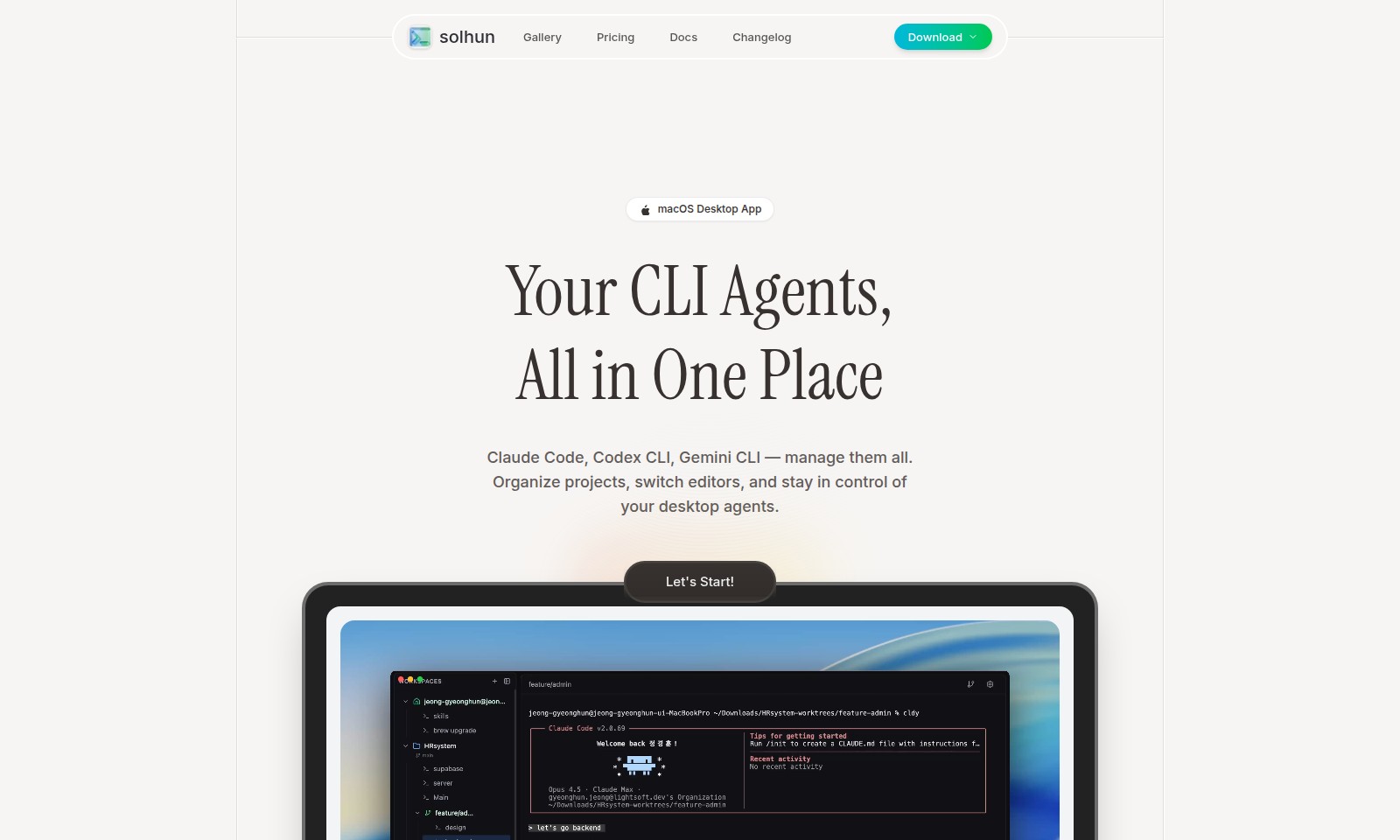
CLI Manager Introduction
CLI Manager - Seamlessly Organize Your AI Agents
Manage all your AI CLI agents like Claude Code, Codex CLI, and Gemini CLI within a unified workspace. With CLI Manager, you can focus on development without the distraction of switching between multiple terminals and losing track of your ongoing projects. Experience the convenience of controlling, organizing, and switching between your desktop agents effortlessly.
CLI Manager Features
Key Features
All CLI Agents, One Dashboard - Effortlessly manage all your CLI agents from a single interface. This feature allows developers to view and activate agents like Claude Code, Codex CLI, and Gemini CLI without needing to switch between multiple terminals, thus enhancing efficiency and maintaining focus on tasks at hand.
Name Your Agents, Define Their Roles - Personalize each CLI agent by renaming them based on their specific functions, such as 'Frontend Dev' or 'Backend API'. This customization not only simplifies workflow but also enables developers to organize projects intuitively within the CLI Manager.
Switch Editors Instantly - Transition between various code editors like Cursor, VS Code, or any preferred tools with just a click. This feature is designed to save time, allowing developers to focus on coding rather than managing their workspace.
Integrated Project Management - Keep all projects well-organized and easily accessible within the CLI Manager. By categorizing projects with nicknames and tags, developers can streamline their workflow and reduce the cognitive load associated with switching contexts.
Context Preservation - Avoid the loss of valuable context by managing multiple AI agents from one powerful workspace. The CLI Manager ensures that all relevant information is kept within reach, enhancing productivity and minimizing interruptions during coding sessions.
Frequently Asked Questions About CLI Manager
Frequently Asked Questions
What is the purpose of the CLI Manager?
The CLI Manager is designed for developers managing multiple AI agents. It allows users to organize their projects efficiently without switching between terminals, thus maintaining context and improving productivity.
How do I manage multiple CLI agents?
You can view and manage all your CLI agents — including Claude Code, Codex CLI, and Gemini CLI — from a single dashboard. This centralized interface makes it easy to activate agents, categorize them, and keep your projects organized.
Can I rename my CLI agents?
Yes, you can assign custom names to each CLI agent to reflect their specific roles. This feature helps in creating a more intuitive and organized workflow, making it easier to identify the purpose of each agent.
What editors can I switch between using the CLI Manager?
The CLI Manager allows you to switch instantly between popular code editors like Cursor and VS Code. You can configure your preferred editor and change projects seamlessly without interrupting your flow.
Is there a desktop app for the CLI Manager?
Yes, there is a macOS Desktop App available for the CLI Manager that provides a dedicated environment for managing your CLI agents. It offers enhanced functionality to streamline your development process,
Where can I find documentation for the CLI Manager?
Comprehensive documentation is available on our website. It includes guides on getting started, using key features, and troubleshooting common issues.
How to Use CLI Manager
Step 1: Register Your Account
To get started, visit the registration page and fill in your details to create your account. Make sure to use a valid email address as you'll need it for verification.
Step 2: Verify Your Email
Check your inbox for a verification email. Click on the provided link to confirm your account. This step is crucial to ensure that you're the rightful owner of the account.
Step 3: Set up Your Profile
Once logged in, navigate to your profile settings to complete your profile. Adding your name and a profile picture can help personalize your experience and make it easier for team collaboration.
Step 4: Explore the Dashboard
After setting up your profile, familiarize yourself with the dashboard. Here, you'll find an overview of all your projects and CLI agents within a single interface, making it convenient to manage your tasks.
Step 5: Add Your CLI Agents
To enhance your workflow, start adding your CLI agents such as Claude Code, Codex CLI, and Gemini CLI. You can manage these agents directly from your dashboard, which allows you to categorize them based on projects.
Step 6: Name Your Agents
Make your workflow more intuitive by renaming your agents. Assign descriptive names like 'Frontend Dev' or 'Backend API' to easily identify their roles and responsibilities in your projects.
Step 7: Switch Editors Instantly
For a seamless coding experience, configure your preferred code editor within the platform settings. You can switch between Cursor, VS Code, or any supported editor with just a click, allowing you to work on multiple projects efficiently.
Step 8: Organize Your Projects
Create distinct projects for your work within the dashboard. This organization helps to maintain clarity and prevents any mix-up between various tasks.
Step 9: Start Collaborating
Invite team members to work on shared projects. Collaboration features enable you to discuss tasks, manage workflows, and track progress all in one place.
Step 10: Utilize Key Features
Make the most of the platform's key features by actively using tools for managing agents and switching between editors. This will enhance your productivity and streamline your development processes.
Conclusion
By following these simple steps, you can seamlessly navigate from registration to utilizing the powerful features of the platform. Embrace the structure and organization it offers to maximize your efficiency as a developer.
Reviews
Pros
- Easy to use
- Fast processing
- Great results
- Affordable pricing
Cons
- Limited free version
- Requires internet connection
Comments
No comments yet. Be the first to share your thoughts!
CLI Manager - Alternative Platforms
For some alternatives to CLI Manager that you may need, we provide you with sites divided by features.

Comprehensive guide to the best hosting options for OpenClaw, featuring expert reviews and a side-by-side comparison of top providers.
ARC offers holistic AI solutions that prioritize user privacy and efficiency. Discover the Matrix and Reactor, designed to protect your data while enhancing your AI experience.
A visual design tool that simplifies frontend development through AI, allowing users to edit and integrate code seamlessly.
OceSha Ventures transforms ideas into AI-driven products, emphasizing collaboration and impact in technology.