Stately
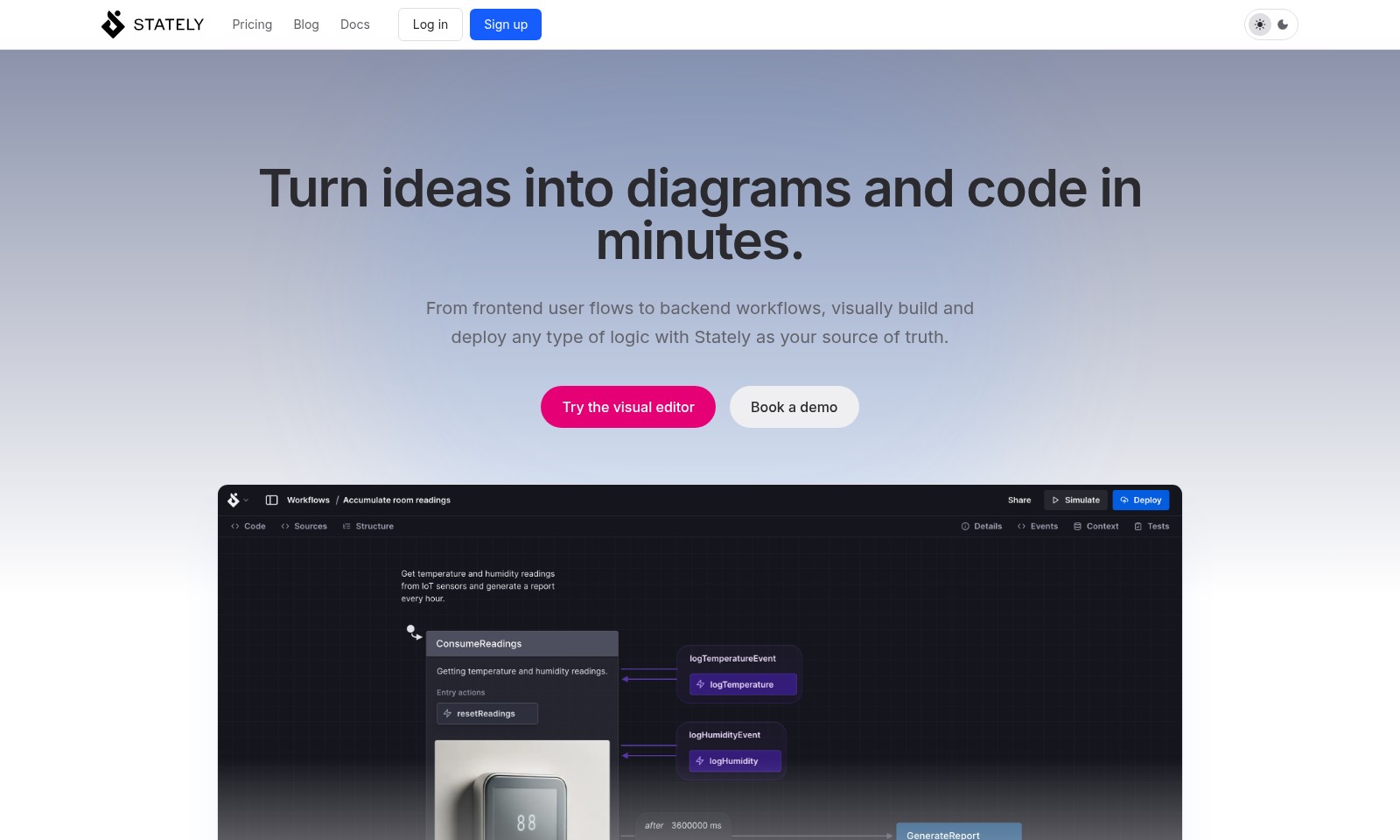
Stately enables teams to create, visualize, and deploy complex logic through a user-friendly interface, integrating visual design and code seamlessly.
Stately Introduction
Transform Your Ideas into Actionable Workflows
Stately empowers teams to turn their ideas into diagrams and executable code in a matter of minutes, seamlessly bridging the gap between concept and implementation.
Stately Features
Feature 1 - Rapid Prototyping
Enable users to create visually appealing diagrams and code effortlessly. The no-code interface allows for fast iterations and prototyping of user flows and backend workflows, saving considerable time in development.
Feature 2 - Unified Collaboration
Our drag-and-drop editor facilitates seamless collaboration among team members of diverse backgrounds. With the integration of code, diagrams, documentation, and test generation into a single platform, teams experience enhanced communication and efficiency.
Feature 3 - Intuitive Visual Language
Harness a design approach that is accessible to all team members. This visual language simplifies complex logic and enhances understanding, ensuring that concepts are clear and actionable for both technical and non-technical stakeholders.
Feature 4 - Feedback and Validation
Utilize simulation features to test and iterate on designs. Rapidly gather feedback from team members and clients about prototypes, ensuring that the final product aligns with user expectations and functional requirements.
Feature 5 - Community Insights
Explore a vast library of community-generated diagrams for inspiration. This feature empowers users to learn from shared experiences and apply best practices, fostering a culture of collaboration and continuous improvement.
Frequently Asked Questions About Stately
FAQs About Our Visual Editor
What is the purpose of the visual editor?
The visual editor is designed to help teams create flows and prototypes without the need for complex coding. It allows users to visually build and deploy logic for both frontend and backend workflows, making it accessible for contributors from all backgrounds.
Can I try the visual editor for free?
Yes, we offer a free trial of our visual editor. You can explore its features and see how it can streamline your processes before committing to a subscription.
How do I get started with Stately?
To get started with Stately, you simply need to sign up for an account. From there, you can access the visual editor and start creating your projects right away.
Is training available for new users?
Absolutely! We provide comprehensive documentation and a variety of tutorials to help new users become proficient with our platform. Additionally, you can book a demo for a more personalized introduction.
What types of projects can I create with this tool?
With our visual editor, you can create a wide range of projects from user flows to backend workflows. Whether it’s for prototyping digital products or documenting processes, Stately has you covered.
How does the collaboration feature work?
The collaboration feature allows team members to contribute to projects easily. With the drag-and-drop functionality, users can work together in real-time, ensuring everyone stays up to date with the latest changes.
How to Use Stately
Register an Account
To start using our platform, click on the 'Sign up' button prominently displayed on the homepage. Fill in the necessary details such as your name, email address, and password. After submitting the form, check your email for a verification link and click on it to activate your account.
Set Up Your Profile
Once logged in, navigate to the 'Profile' section in your dashboard. Here, you can add a profile picture, update your personal information, and select your notification preferences. A complete profile helps personalize your experience and allows for better collaboration with your team.
Explore the Visual Editor
After setting up your profile, head to the visual editor. Click on 'Try the visual editor' to access the interface where you can start creating diagrams and code without any technical expertise. Familiarizing yourself with this tool will enhance your efficiency in managing user flows and backend workflows.
Create Your First Project
To begin, click on 'New Project' within the visual editor. Choose a blank template or a pre-made example to get started. Name your project and define its purpose. This step will help you organize your ideas and visualize your logic better.
Design Your Workflow
Utilize the drag-and-drop feature to create diagrams that represent your project’s workflow. Start by adding shapes and connectors to outline the process clearly. Remember that each component should represent a specific step or action in your logic, making it easy to follow for other collaborators.
Collaborate with Your Team
Invite your team members by clicking on 'Share' and entering their email addresses. Collaboration is key to refining your project. Use the comments section to discuss ideas or suggest improvements directly on the diagrams you’ve created, ensuring everyone’s input is considered.
Test Your Design
Once your workflow is set up, it’s time to simulate the design. Click on 'Simulate' to see how your project will function in a real-world scenario. This step allows you to identify any flaws or areas that need adjustment before finalizing your work.
Export and Share Your Results
After testing and making the necessary adjustments, export your project. Choose your preferred format—whether it’s a diagram, code snippet, or documentation. Share your results with stakeholders to get their feedback and make further improvements based on their suggestions.
Iterate and Enhance Your Project
Gather feedback from your team and clients on your prototype. Use this information to iterate on your design. The visual editor allows you to make changes quickly, so take advantage of this to refine your project continuously.
Stay Updated with Community Resources
Explore community diagrams within the platform for inspiration. Engaging with the community can provide fresh insights into effective designs and workflows. Use these resources as a springboard to enhance your own projects.
Utilize Documentation and Blogs
Lastly, don’t forget to visit the 'Docs' and 'Blog' sections on our site. They contain vital information and best practices that can aid in your learning process. Staying informed is essential for mastering the tools and features available to you.
Reviews
Pros
- Easy to use
- Fast processing
- Great results
- Affordable pricing
Cons
- Limited free version
- Requires internet connection
Comments
No comments yet. Be the first to share your thoughts!
Stately - Alternative Platforms
For some alternatives to Stately that you may need, we provide you with sites divided by features.
Claude Opus 4 represents the forefront of AI technology with a focus on safety, enabling powerful applications and research at Anthropic.
Claude Code Router is a tool that extends Claude Code, enabling dynamic routing of coding tasks to multiple AI models, enhancing flexibility and customization for developers.
Grok 4 is a revolutionary AI model from xAI, boasting exceptional reasoning capabilities and multimodal support, now accessible on various platforms.
Explore Venice's private and uncensored AI models with secure access to leading open-source technology for text, images, and code.